A step-by-step guide for kids (and curious adults!) to create a fun game
using VizAI — no coding experience needed.
⏱ About 60 minutes🧒 Ages 8 and up🆓 Free to start🟡 Works with Scratch 3
Introduction
What You'll Build 🦔
In this ebook, you'll create a complete Whack-a-Mole game in Scratch —
with a mole that pops up randomly, a score counter, a 30-second timer, and a Game Over screen.
The secret? You don't have to write a single block yourself. We'll use VizAI to do it for us!
What is VizAI?
VizAI (vizai.dev) is an AI tool that turns plain-language descriptions
into ready-to-use Scratch code blocks. You describe what you want,
and VizAI generates the blocks — then you download and drop them straight into Scratch.
How This Ebook Works
Each chapter focuses on one game feature. We'll give you a prompt to type into VizAI,
show you what the blocks look like, and explain what each block does.
By the end, you'll have a fully working game — and you'll know how to use AI to
tackle any Scratch project!
💡
Tip for parents & teachers: Each chapter takes about 5–10 minutes.
You can do them all in one sitting or spread them across multiple sessions —
Scratch saves your progress automatically.
Visit vizai.dev — free users get 3 generations to start
That's it! No downloads, no installation needed.
· · ·
Chapter 1
Get Ready: Plan Your Game 🗺️
Before we ask VizAI for any blocks, let's think about what our game needs.
Great games start with a simple plan!
What Does a Whack-a-Mole Game Need?
Let's break the game into its main parts:
A Mole — pops up from a random hole, disappears after a moment
A Score — goes up by 1 every time you click the mole
A Timer — counts down from 30 seconds
A Game Over Screen — appears when time runs out
Our Plan: One Feature = One VizAI Prompt
Instead of asking VizAI to build everything at once, we'll ask for
one feature at a time. This way, we can check each part works
before moving on — just like real game developers do!
✏️
Draw your game on paper first! Sketch the stage with some holes, a mole, a score display,
and a timer. It doesn't have to be perfect — just get your ideas down.
Find the text box that says "Describe what you want to create".
Type (or paste) your prompt and click Generate Code & Blocks.
Wait a moment — your Scratch blocks will appear on the right!
Click Download .sprite3 to save the file.
In Scratch, right-click the Sprite area and choose Upload Sprite to import it.
🚀 Ready? Let's go!
Open VizAI and Scratch in two browser tabs. We'll switch between them as we build each feature.
· · ·
Chapter 2
Make the Mole Pop Up! 🦔
Time to bring our mole to life. We want it to appear in a random spot, wait
for a moment, then hide — over and over again until the game ends.
Step 1 — Type This Prompt into VizAI
🤖 VizAI Prompt
"Create a Scratch sprite that loops forever: randomly move to one of 6 positions on stage,
show for 1 second, then hide for a random time between 0.5 and 1.5 seconds.
Stop when it receives a 'game over' broadcast."
👆 Copy this exactly and paste it into VizAI
Step 2 — Download and Import
After VizAI generates the blocks, download the .sprite3 file.
In Scratch, right-click the Sprites panel (bottom right) → Upload Sprite → select your file.
♻️
AI results may vary! Each time you generate blocks in VizAI, the output might look slightly different.
That's completely normal — AI is creative, just like you! If the blocks don't look right or the game doesn't behave as expected,
simply click Generate again to get a new version, or fix the blocks manually in Scratch.
Learning to spot and fix small errors is one of the most valuable coding skills you can build.
Step 3 — What Do the Blocks Do?
🧩
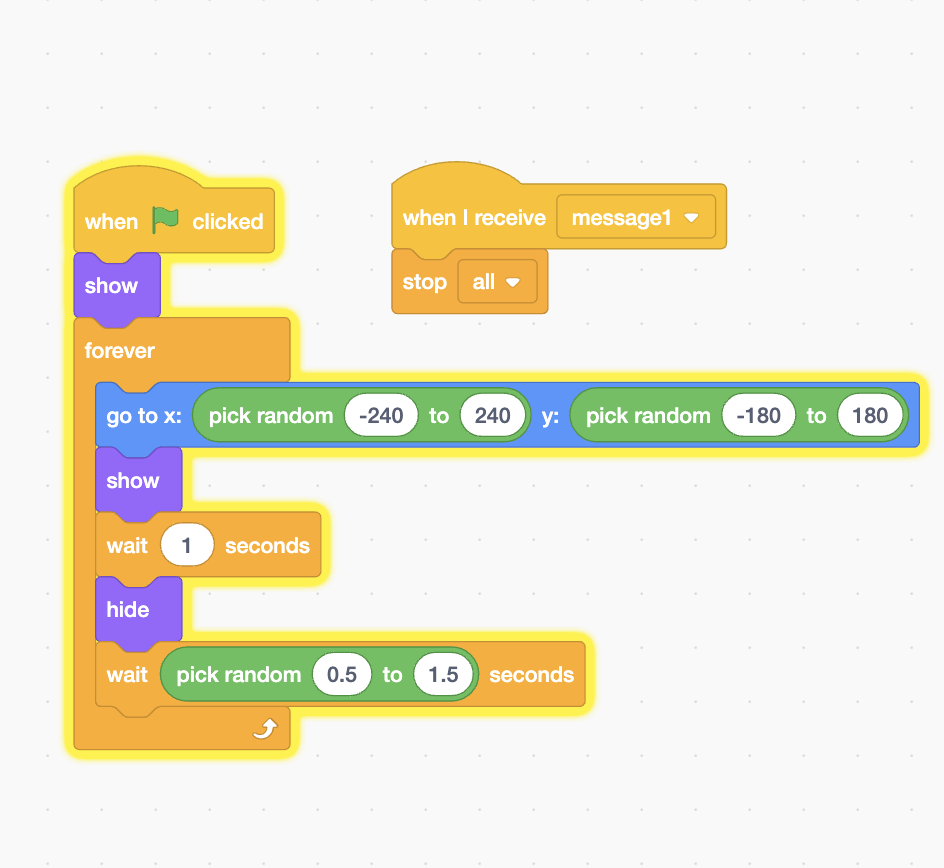
Block Image: Mole Appear & Hide Loop
Save your screenshot as images/ch2-mole-blocks.png next to this HTML file
VizAI generated two block stacks — here's what each one does:
Left stack — the main loop
when 🚩 clicked — starts everything when you press the green flag.
show — makes the mole visible at the very start of the game.
forever — repeats the loop endlessly so the mole keeps popping up.
go to x: pick random -240 to 240 y: pick random -180 to 180 — teleports the mole to a completely random spot on the stage each time.
show → wait 1 seconds → hide — the mole pops up for exactly 1 second, then disappears.
wait pick random 0.5 to 1.5 seconds — adds a random pause so players can't predict when the mole will appear next!
Right stack — the game over listener
when I receive message1 — this block listens for a signal from another sprite (we'll send this signal from the Timer in Chapter 4).
stop all — stops every script in the entire game when the signal arrives.
🔧 One Small Fix!
Notice the right block says when I receive message1.
VizAI used a default name, but we need it to match the broadcast our Timer will send in Chapter 4.
Fix it now: Click the dropdown on that block and rename message1 to
game over. This way, when the timer finishes and broadcasts "game over",
the mole will know to stop immediately. ✅
💡 This is exactly how real developers work — AI gives you a great starting point,
and you refine the details to make everything fit together perfectly.
🎨
Use the Scratch costume editor to draw or upload your own mole sprite!
You can find free mole images by searching "mole cartoon" in Scratch's built-in library too.
✅ Test It!
Press the green flag. Does the mole keep jumping to random spots, appearing and hiding?
If yes — great work! Move on to Chapter 3 to make it react when you click it.
· · ·
Chapter 3
Click the Mole, Get Points! 🏆
Now let's make clicking the mole actually do something — add a point and play a sound!
This time we'll use VizAI's Add More Features button to build on top of what we already made.
Step 1 — Use "Add More Features" in VizAI
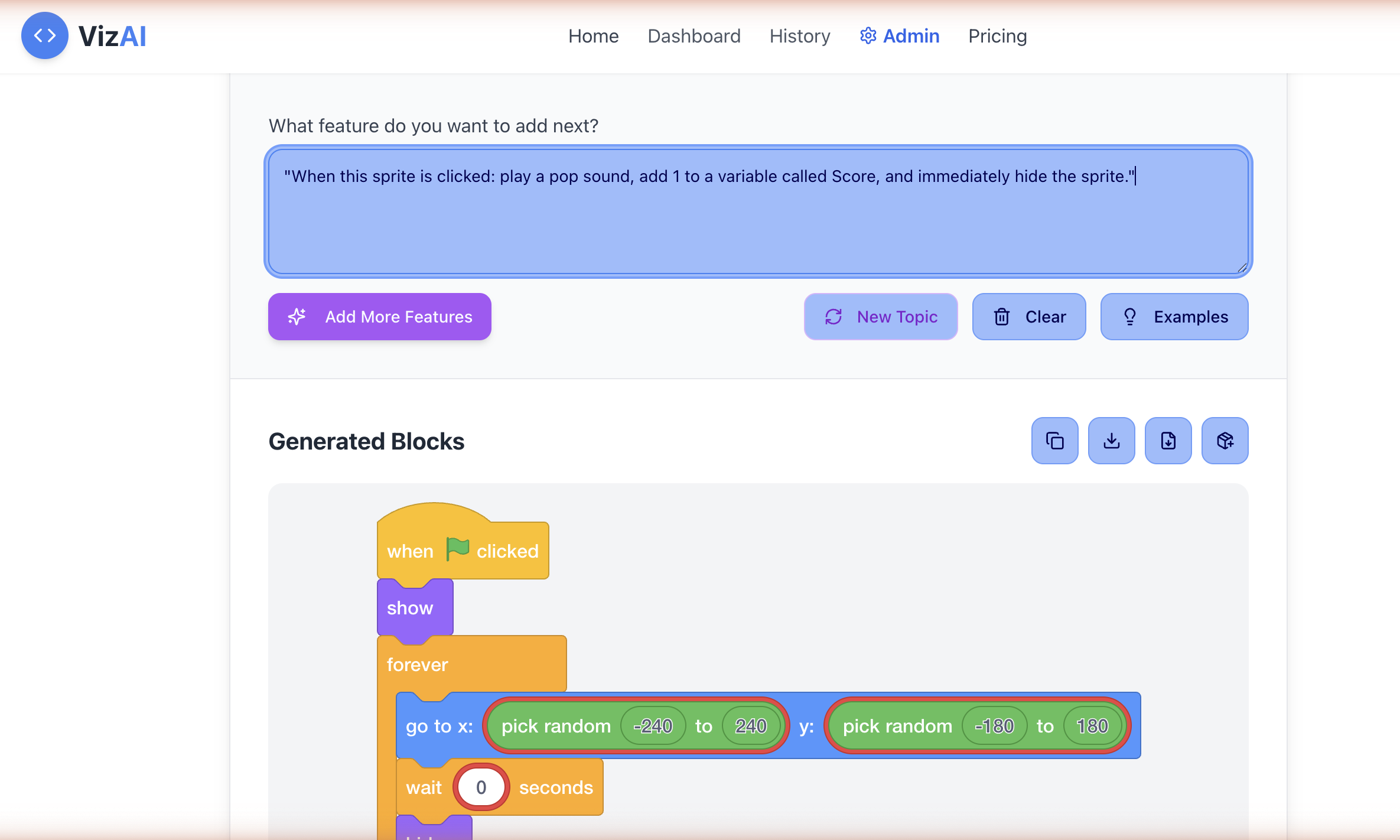
Go back to VizAI. You'll see your Chapter 2 blocks are still shown in the Generated Blocks area.
Instead of starting over, type your new prompt in the box and click Add More Features —
VizAI will add the new blocks on top of the existing ones in the same download!
💡
Screenshot: VizAI Add More Features
Save screenshot as images/ch3-vizai-add-feature.png
🤖 VizAI Prompt — Add More Features
"When this sprite is clicked: play a pop sound, add 1 to a variable called Score,
and immediately hide the sprite."
👆 Type this, then click Add More Features — not Generate!
Step 2 — Download and Import into Scratch
Download the updated .sprite3 file. In Scratch, right-click your existing mole sprite
and choose Delete, then upload the new file — it already contains
all the blocks from Chapter 2 plus the new scoring blocks. Everything in one sprite!
Step 3 — What's New in the Blocks?
🧩
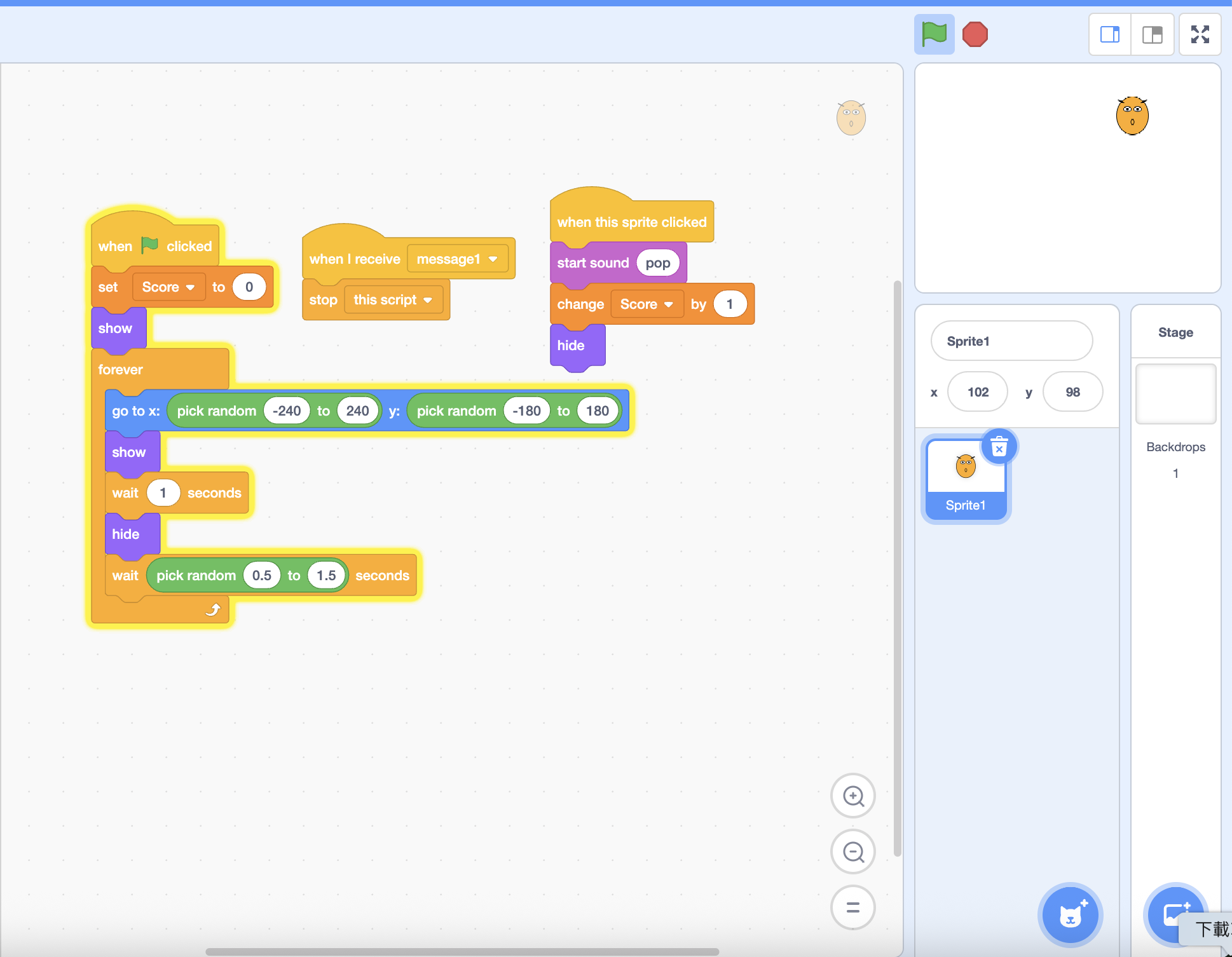
Block Image: Click to Score
Save screenshot as images/ch3-score-blocks.png
VizAI added a brand new block stack on the right side:
when this sprite clicked — runs only when a player clicks directly on the mole.
start sound pop — plays a "pop" sound when the mole is whacked. We'll add this sound next!
change Score by 1 — adds 1 point to the Score variable.
hide — the mole instantly disappears after being clicked.
⭐
This is the power of "Add More Features"! Instead of rebuilding everything from scratch,
VizAI keeps your previous work and just adds what you asked for. As your game grows,
you can keep layering on new features — one idea at a time.
Step 4 — Add the Pop Sound in Scratch
The blocks say start sound pop, but Scratch needs the actual sound file loaded first.
Here's how to add it:
Make sure your mole sprite is selected in the Sprites panel.
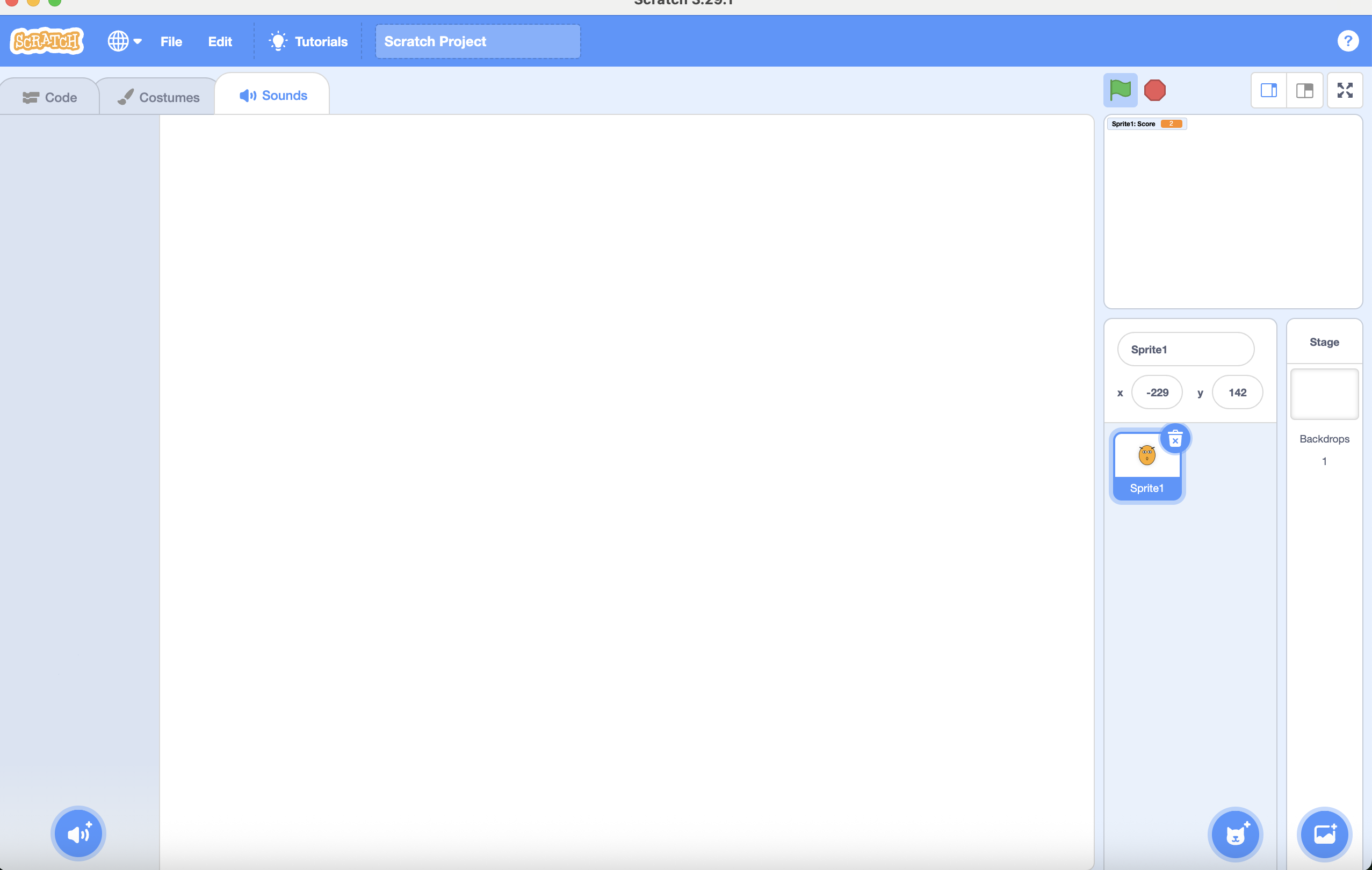
Click the Sounds tab at the top left (next to Code and Costumes).
🔊
Screenshot: Sounds tab
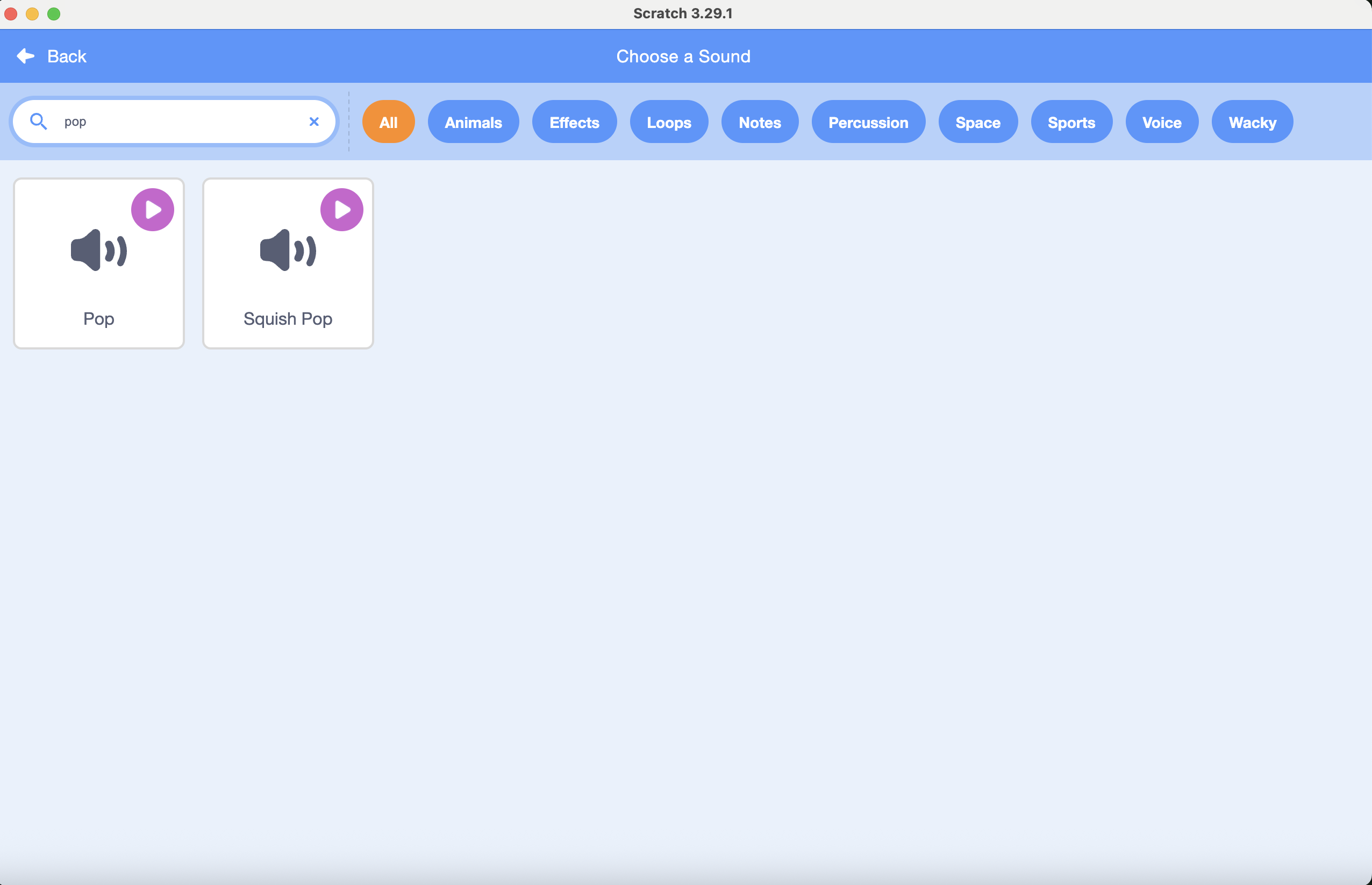
Click the speaker icon (bottom left) to open the sound library and search for "pop".
Select Pop and click to add it. That's it!
🔊
Screenshot: Sound search results
Step 5 — Show the Score on Screen
VizAI created the Score variable automatically, but you need to make sure
it's visible on the stage during the game. Here's how to check:
Click the Variables category in the block palette (the orange section on the left).
Find the Score variable and make sure the checkbox next to it is ticked ✅. If it's unticked, click it to turn it on.
You should now see the score display appear in the top-left corner of the stage. You can drag it anywhere on the stage you like!
💡
You can right-click the score display on the stage and choose "large readout"
to make the number bigger and easier to see while playing!
✅ Test It!
Press the green flag, wait for the mole to appear, then click it. Does the score go up by 1?
Do you hear a pop sound? Is the score visible on screen? If all three work — you're halfway to a complete game!
· · ·
Chapter 4
Add a 30-Second Countdown ⏱️
The last piece of our game! We'll create a countdown timer that starts at 30 and
automatically stops the game when it hits zero.
Step 1 — Start a New Topic in VizAI
The timer is a completely separate sprite from the mole. Click New Topic
in VizAI to start fresh, then paste the prompt below and click Generate.
🤖 VizAI Prompt
"Create a Scratch sprite that: sets a variable called Timer to 30,
then counts down by 1 every second. When Timer reaches 0,
broadcast 'game over' and stop."
👆 Use Generate (not Add More Features) — this is a brand new sprite
Step 2 — Import as a New Sprite
Download the .sprite3 file and import it into Scratch. You'll see a new sprite
appear in the Sprites panel alongside your mole. This sprite acts as the game's invisible clock.
Step 3 — What Do the Blocks Do?
🧩
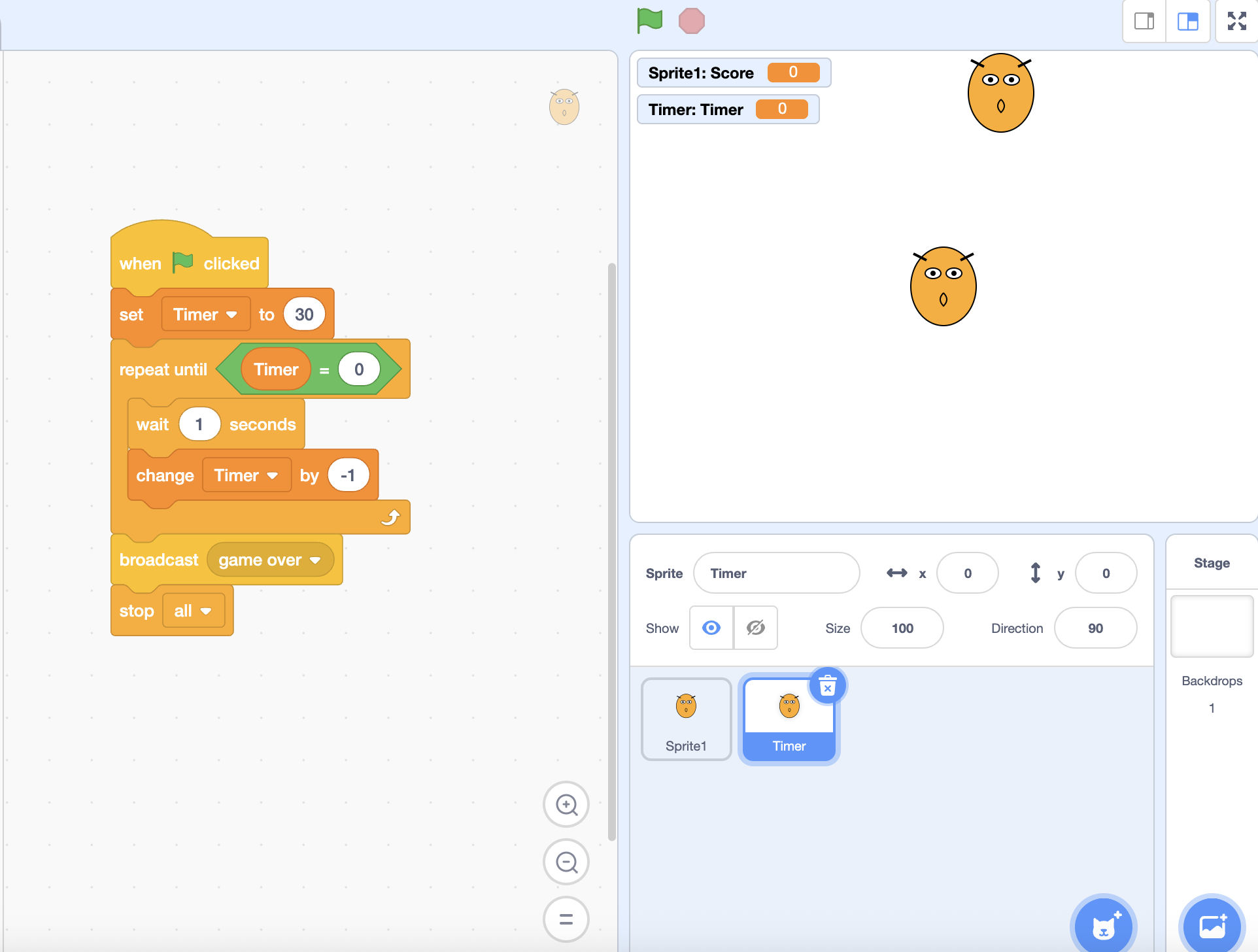
Block Image: Countdown Timer
Save screenshot as images/ch4-timer-blocks.png
set Timer to 30 — resets the clock to 30 every time a new game starts.
repeat until Timer = 0 — keeps looping until time runs out.
wait 1 seconds → change Timer by -1 — subtracts 1 every second, so the countdown is real-time.
broadcast game over — sends a signal to all other sprites (including the mole) to stop. This is how the mole knows the game is over!
stop all — freezes everything completely.
📡
What is a broadcast? Think of it like a school bell — when it rings,
everyone stops what they're doing. When the timer broadcasts "game over",
every sprite that is listening for that message will react.
Step 4 — Hide the Timer Sprite
When you import the timer sprite, you'll notice it appears as a character on the stage.
Since it's just a clock, we don't need to see it! There are two easy ways to hide it:
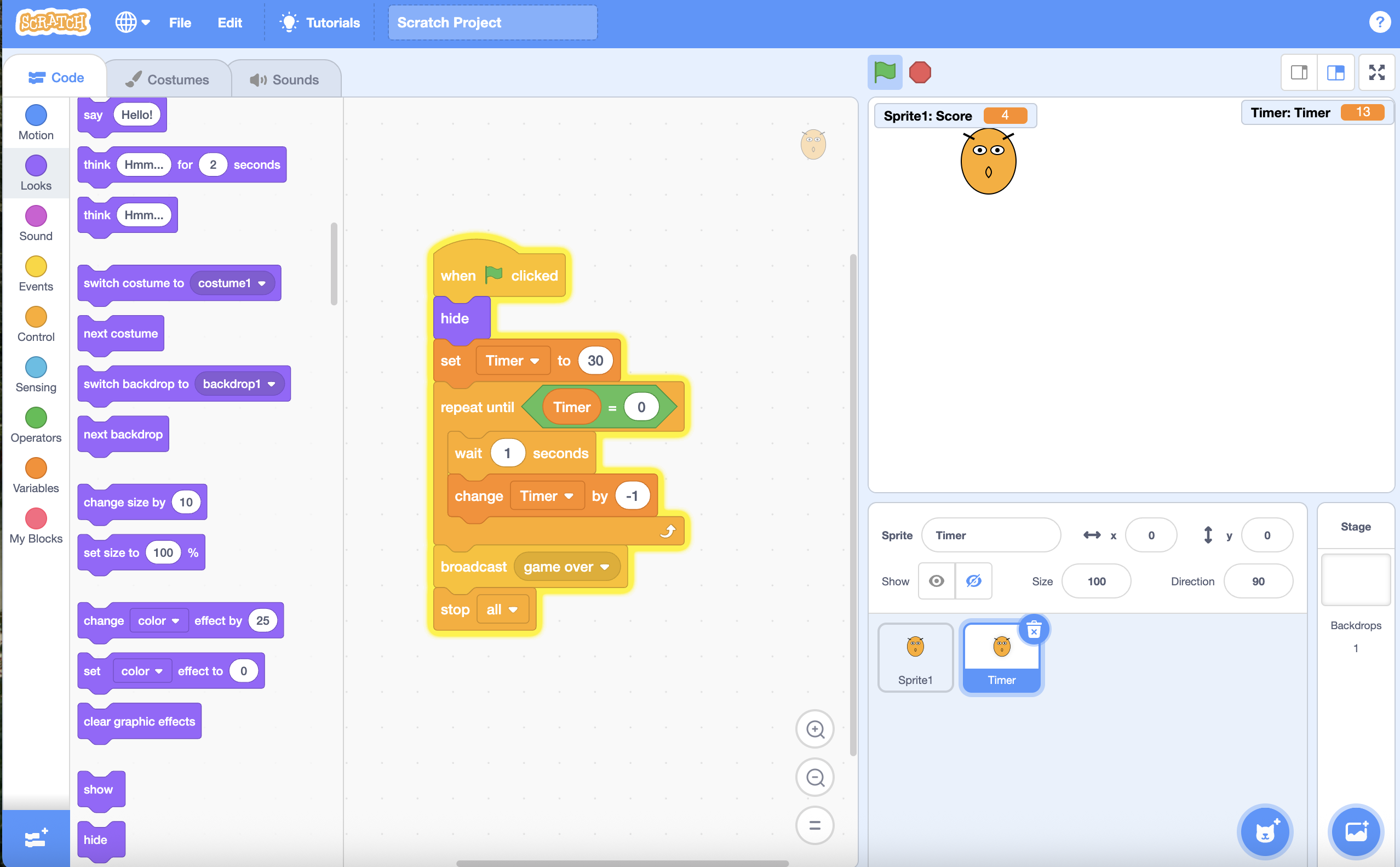
Quick way: In the Sprites panel, click the timer sprite's eye icon (👁) to hide it from the stage.
Using blocks: Click the timer sprite, go to the Looks block category, and drag a hide block to connect right under when 🚩 clicked. This makes sure it's always hidden when the game starts.
Step 5 — Show the Timer on Screen
Just like Score, make sure the Timer variable is ticked in the Variables
category so the countdown is visible on the stage during the game.
Your Completed Game 🎉
That's it — your Whack-a-Mole game is done! Here's what the finished project looks like in Scratch:
🎮
Screenshot: Final Game
Save screenshot as images/final-game.png
✅ Final Test!
Press the green flag and play! Does the mole pop up randomly? Does your score go up when you click it?
Does the timer count down from 30 and stop the game at zero?
If yes — congratulations, you just built your first AI-powered Scratch game! 🏆
Ready to Build Your Next Game? 🎮
You built a complete game using just 3 VizAI prompts. Imagine what you can create next!
Save these prompts — or share them with a friend who wants to build the same game!
Chapter 2 — Mole Appears
"Create a Scratch sprite that loops forever: randomly move to one of 6 positions on stage,
show for 1 second, then hide for a random time between 0.5 and 1.5 seconds.
Stop when it receives a 'game over' broadcast."
Chapter 3 — Click to Score (use Add More Features)
"When this sprite is clicked: play a pop sound, add 1 to a variable called Score,
and immediately hide the sprite."
Chapter 4 — Countdown Timer (new sprite — use Generate)
"Create a Scratch sprite that: sets a variable called Timer to 30,
then counts down by 1 every second. When Timer reaches 0,
broadcast 'game over' and stop."
💡
Remember: AI results may vary each time you generate. If the blocks don't look right,
try generating again or fix the details manually in Scratch — that's part of the learning!