Generate the game logic with just one VizAI prompt, then design your very own maze
in Scratch — no coding experience needed.
⏱ About 45 minutes🧒 Ages 8 and up🆕 Free to start🟠 Works with Scratch 3
Introduction
What You'll Build
In this guide, you'll create a maze game in Scratch — with a player character that moves
using arrow keys, walls that block your path, and a goal that triggers a win message.
The best part? VizAI generates all the code for you in one single prompt,
and then you get to design your own maze!
What is VizAI?
VizAI (vizai.dev) is an AI tool that turns plain-language descriptions
into ready-to-use Scratch code blocks. You describe what you want,
and VizAI generates the blocks — then you download and drop them straight into Scratch.
How This Guide Works
This project has two parts: first, we'll use one VizAI prompt to generate all the
game logic — player movement, wall collision, and win detection. Then, you'll unleash your
creativity and draw your own maze right inside Scratch's backdrop editor.
💡
Tip for parents & teachers: This guide is a great introduction to game physics
concepts like collision detection and coordinate systems. The drawing step also lets kids express
their creativity — every maze will be unique!
Visit vizai.dev — free users get 3 generations to start
That's it! No downloads, no installation needed.
· · ·
Chapter 1
Get Ready: Plan Your Maze Game
Before we generate any blocks, let's understand what our maze game needs.
A little planning goes a long way!
What Does a Maze Game Need?
Let's break the game into its main parts:
A Player — a small sprite that moves with arrow keys
Walls — black-colored barriers that block the player's path
A Goal — a green-colored area that triggers a win when the player reaches it
Collision Detection — the game checks if the player is touching a wall or the goal
The Key Idea: Color-Based Collision
Here's the clever trick: instead of building complex wall objects, we'll simply
draw the maze on the backdrop using specific colors. The code will detect when the
player touches black (wall — blocked!) or green (goal — you win!).
This means you can draw any maze shape you want, and the game logic stays the same.
✏️
Sketch your maze on paper first! Draw a rectangle for the stage, some winding paths,
and mark where the start and goal should be. Keep the paths wide enough for a small sprite to fit through.
Find the text box that says "Describe what you want to create".
Type (or paste) your prompt and click Generate Code & Blocks.
Wait a moment — your Scratch blocks will appear on the right!
Click Download .sb3 to save the project file, or Download .sprite3 to save just the sprite.
In Scratch, use File > Load from your computer to import the .sb3 file, or right-click the Sprite area and choose Upload Sprite to import the .sprite3 file.
🚀 Ready? Let's go!
Open VizAI and Scratch in two browser tabs. We'll generate the blocks first, then switch to Scratch to draw the maze.
· · ·
Chapter 2
Generate the Player Blocks
With just one prompt, VizAI will generate all the game logic — player movement,
wall collision, and win detection. Let's do it!
Step 1 — Type This Prompt into VizAI
🤖 VizAI Prompt
"Create a Scratch maze game sprite. When green flag clicked: set playerX to 0, playerY to 0,
moveStep to 5, and gameOver to 0. Go to x: playerX y: playerY, show the sprite, and switch
costume to costume1. In a forever loop: if up arrow pressed, change playerY by moveStep;
if down arrow pressed, change playerY by negative moveStep; if left arrow pressed, change
playerX by negative moveStep; if right arrow pressed, change playerX by moveStep. After
movement, go to x: playerX y: playerY. If touching the color black (walls), undo the
last move by reverting playerX and playerY, then go back. If touching the color green
(goal), set gameOver to 1 and say 'You win!' for 2 seconds."
👆 Copy this exactly and paste it into VizAI
Step 2 — Download and Import
After VizAI generates the blocks, download the .sb3 file (full project) or the
.sprite3 file (sprite only).
For .sb3: In Scratch, go to File > Load from your computer and select the downloaded file.
For .sprite3: In Scratch, right-click the Sprites panel (bottom right) → Upload Sprite → select your file.
♻️
AI results may vary! Each time you generate blocks in VizAI, the output might look slightly different.
That's completely normal — AI is creative, just like you! If the blocks don't look right or the game doesn't behave as expected,
simply click Generate again to get a new version, or fix the blocks manually in Scratch.
Learning to spot and fix small errors is one of the most valuable coding skills you can build.
Step 3 — What Do the Blocks Do?
🧩
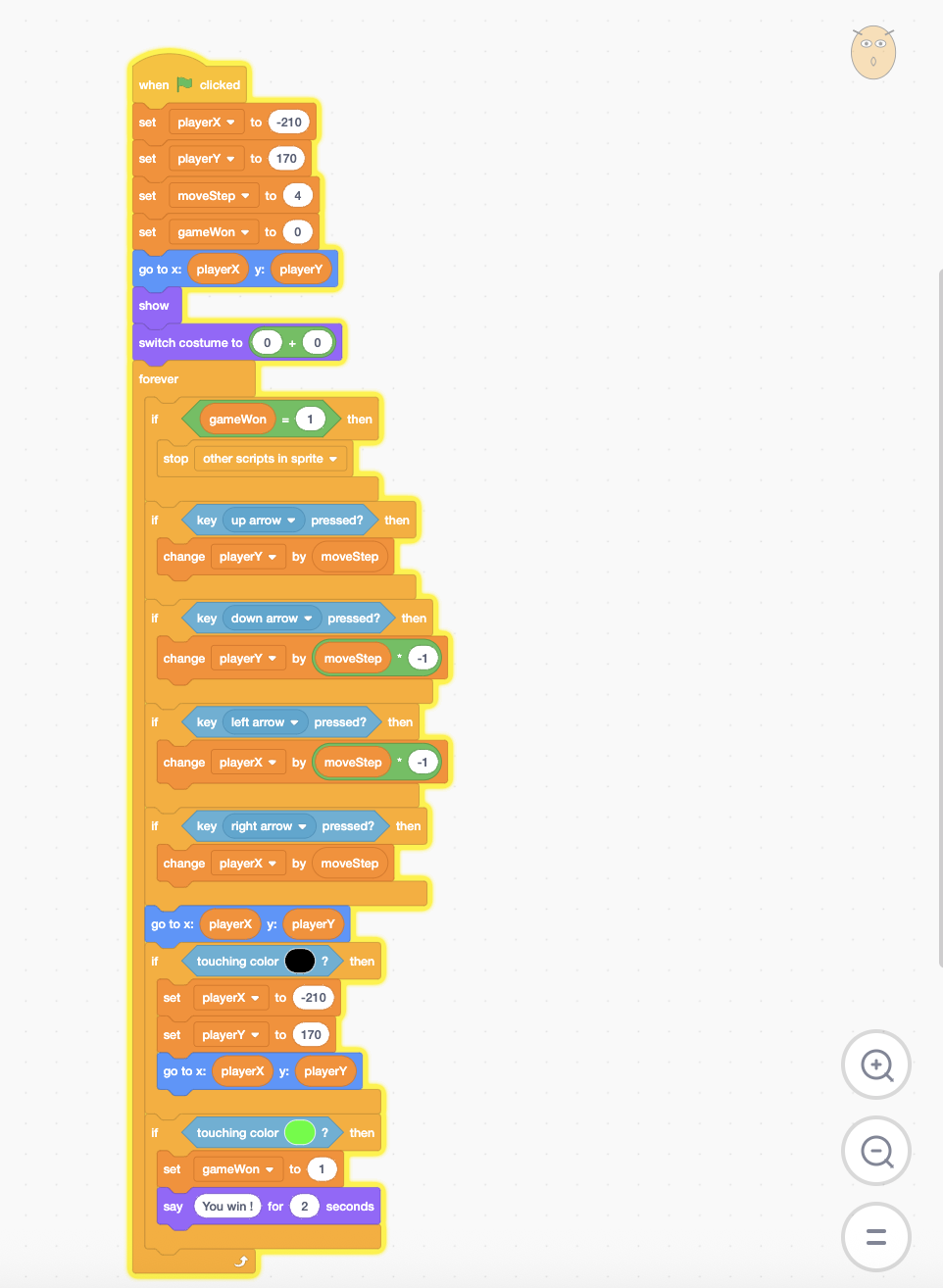
Block Image: Maze Player Blocks
Save your screenshot as images/ch2-maze-blocks.png next to this HTML file
VizAI generated one block stack that handles everything. Here's what each part does:
Initialization — setting up the game
when clicked — starts everything when you press the green flag.
set playerX to 0 and set playerY to 0 — places the player at the center of the stage. You can change these numbers to set a different starting position!
set moveStep to 5 — controls how many pixels the player moves with each key press. A smaller number makes the player move slower (and the game harder!).
set gameOver to 0 — a flag that tracks whether the game has ended. 0 means still playing.
go to x: playerX y: playerY — moves the sprite to the starting position.
show and switch costume to costume1 — makes the player visible with the right appearance.
Movement — arrow key controls
if key up arrow pressed → change playerY by moveStep — moves the player up.
if key down arrow pressed → change playerY by -moveStep — moves the player down.
if key left arrow pressed → change playerX by -moveStep — moves the player left.
if key right arrow pressed → change playerX by moveStep — moves the player right.
Collision — walls and the goal
go to x: playerX y: playerY — after reading key presses, the sprite moves to the new position.
if touching color black? — checks if the player is on a wall. If yes, it reverses the last move so the player bounces back. This is what makes walls solid!
if touching color green? — checks if the player reached the goal. If yes, it sets gameOver to 1 and says "You win!" for 2 seconds.
🔧 Important: Color Matching
The blocks detect wall and goal colors. When you draw your maze in the next chapter,
make sure to use exact black (#000000) for walls and exact green for the goal area.
If the colors in your maze don't match the colors in the blocks, the collision won't work.
You can click the color circle in the touching color block
and use the eyedropper tool to pick colors directly from your backdrop.
💡 This is a great example of how code and art work together in game development —
the colors you draw are actually part of the game logic!
✅ Quick Test
Press the green flag. Your player sprite should appear in the center of the stage.
Try pressing the arrow keys — the sprite should move around. It won't hit any walls yet
(we haven't drawn them!), but if it moves, the code is working.
· · ·
Chapter 3
Draw Your Own Maze!
This is where you become the game designer! VizAI generated the game logic,
but the maze itself is all yours. Let's draw it in Scratch's backdrop editor.
Step 1 — Open the Backdrop Editor
In Scratch, look at the bottom-right corner of the screen where it says Stage.
Click the Stage panel, then click the Backdrops tab at the top left (next to Code and Sounds).
You'll see a blank white canvas — this is where you'll draw your maze!
Step 2 — Draw the Walls
Select the Rectangle tool from the toolbar on the left side.
Set the fill color to black (#000000) — this is critical! The game code detects black as walls.
Draw the outer border of your maze — a large rectangle around the edges of the stage.
Now draw inner walls to create paths. Leave gaps for the player to walk through. Make sure paths are wide enough for the sprite!
🎨
Design tips: Start simple — draw a few straight walls to create an L-shaped or S-shaped path.
You can always add more walls later to make it harder! Keep paths at least 20 pixels wide so the player
sprite can fit through easily.
Step 3 — Draw the Goal
Switch the fill color to green.
Draw a small green rectangle or circle at the end of your maze — this is the finish line!
Place it somewhere that requires navigating through the maze to reach.
Step 4 — Set the Player's Starting Position
By default, the player starts at the center of the stage (x: 0, y: 0). If that's inside a wall,
you have two options:
Move the wall: Make sure the center of the stage is inside an open path area.
Change the start position: In the code blocks, change set playerX to 0 and set playerY to 0 to coordinates that are inside an open area of your maze. Hover your mouse over the stage to see the x and y coordinates in the bottom right!
Your Completed Game!
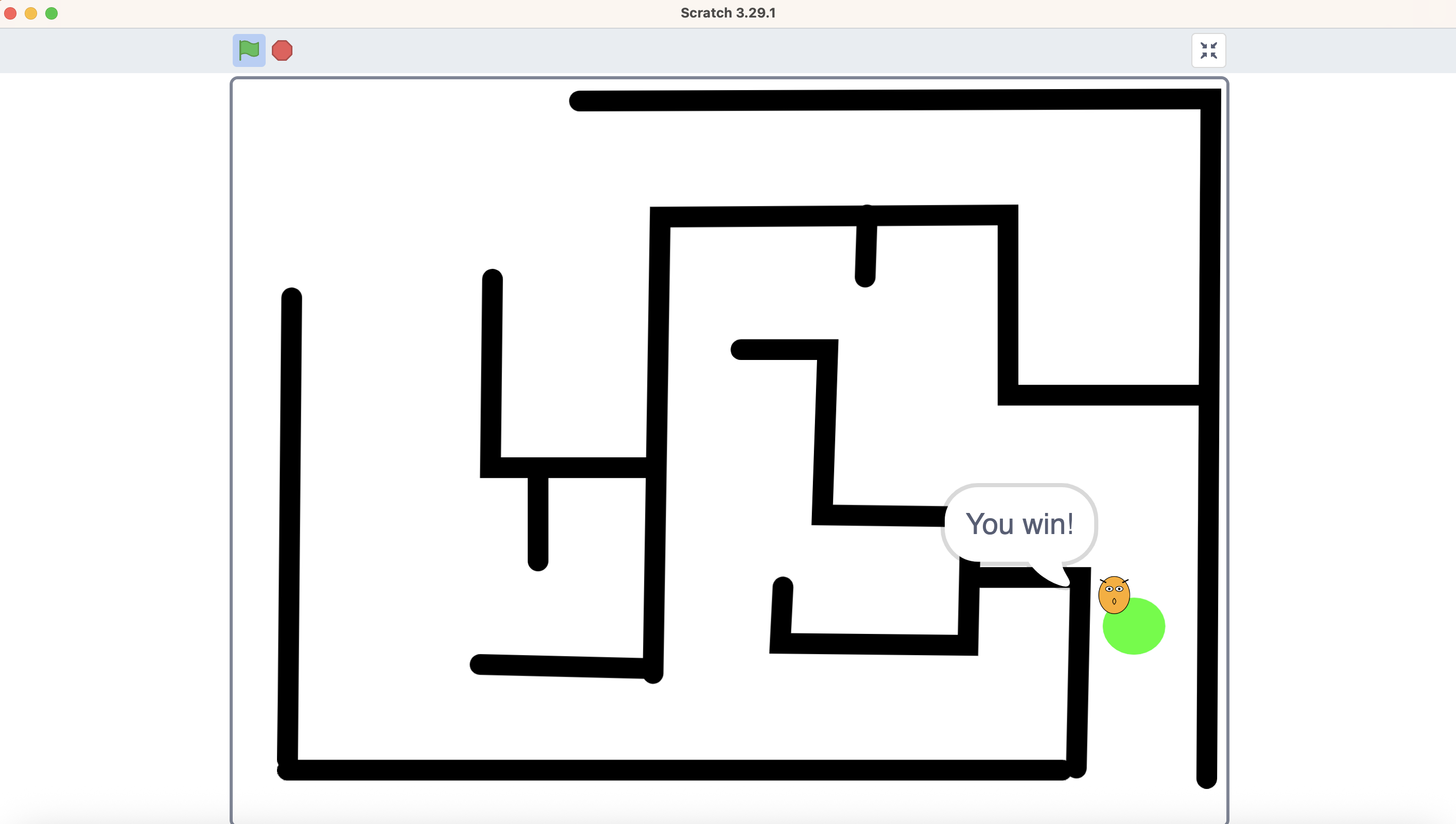
That's it — your Maze Runner game is done! Here's an example of what the finished project can look like:
🎮
Screenshot: Final Game
Save screenshot as images/final-game.png
✅ Final Test!
Press the green flag and play! Can you navigate through the maze using the arrow keys?
Does the player stop when hitting black walls? Does it say "You win!" when you reach the green goal?
If yes — congratulations, you just designed and built your own maze game!
Make It Even Better!
Here are some fun ideas to level up your maze:
Add a timer: Use VizAI to generate a countdown timer (just like in the Whack-a-Mole guide!) and challenge yourself to finish before time runs out.
Multiple levels: Draw different maze backdrops and switch to the next one when the player reaches the goal.
Collectibles: Add small colored dots along the path and use VizAI to generate score-tracking blocks.
Make it pretty: Add decorations using colors that aren't black or green — those won't affect the gameplay!
Ready to Build Your Next Game?
You built a complete maze game using just 1 VizAI prompt and your own creativity. Imagine what you can create next!
Save this prompt — or share it with a friend who wants to build their own maze!
Chapter 2 — Maze Player Blocks
"Create a Scratch maze game sprite. When green flag clicked: set playerX to 0, playerY to 0,
moveStep to 5, and gameOver to 0. Go to x: playerX y: playerY, show the sprite, and switch
costume to costume1. In a forever loop: if up arrow pressed, change playerY by moveStep;
if down arrow pressed, change playerY by negative moveStep; if left arrow pressed, change
playerX by negative moveStep; if right arrow pressed, change playerX by moveStep. After
movement, go to x: playerX y: playerY. If touching the color black (walls), undo the
last move by reverting playerX and playerY, then go back. If touching the color green
(goal), set gameOver to 1 and say 'You win!' for 2 seconds."
💡
Remember: AI results may vary each time you generate. If the blocks don't look right,
try generating again or fix the details manually in Scratch — that's part of the learning!